

Beginning with this release, Sage 100 Contractor version numbers now use the calendar year followed by a quarterly numeric signifier. Future releases will appear as 2026.2, 2026.3, and 2026.4.
With the new naming convention in place, Sage 100 Contractor 2026.1 brings several exciting features designed to improve workflows:
- Custom job statuses aligned to your workflows
- Bulk document distribution for email and print
- Report File Manager for organizing reports and forms
- Updated ACH formats to meet NACHA requirements
1 Introducing custom job statuses
Sage 100 Contractor now allows you to create up to 99 custom job statuses and each one must map back to one of the six system-defined statuses:
- Bid
- Refused
- Contract
- Current
- Complete
- Closed
These system statuses still control core system behavior and cannot be changed. The custom statuses sit on top, giving you more flexibility in how you label and track jobs without breaking the underlying logic.

This means you can align job statuses more closely with how your team actually works. For example, instead of relying only on “Current,” you might introduce stages like:
- Mobilizing
- In Progress
- On Hold
- Punch List
All while still mapping back to the appropriate system status.
Why this matters
- Track jobs using terminology that reflects real-world workflows
- Preserve existing reporting, reminders, and validation rules
- Improve filtering and visibility across job lists and dashboards
What to consider before setting it up
More flexibility doesn’t always mean better clarity. Adding too many statuses can make reporting harder and create confusion across teams.
This is a good opportunity to:
- Review your current workflow
- Standardize how jobs move from one stage to another
- Align accounting and operations on status definitions
Because of the mapping requirement, setup may also require some planning—especially if you want reporting and dashboards to remain consistent. This is one area where a quick discussion or review can save rework later.
2 New bulk document distribution feature
Bulk Document Distribution lets you send or print multiple documents in one pass instead of handling them one at a time. That is especially helpful for teams sending invoices, statements, purchase orders, subcontracts, or lien waivers in batches.
You start from the Report Printing window for a supported report and select Send Multiple Documents. Sage then builds a list of documents based on your report criteria. It pulls in the email address from the related job, client, or vendor, so each document can go to the right contact automatically.
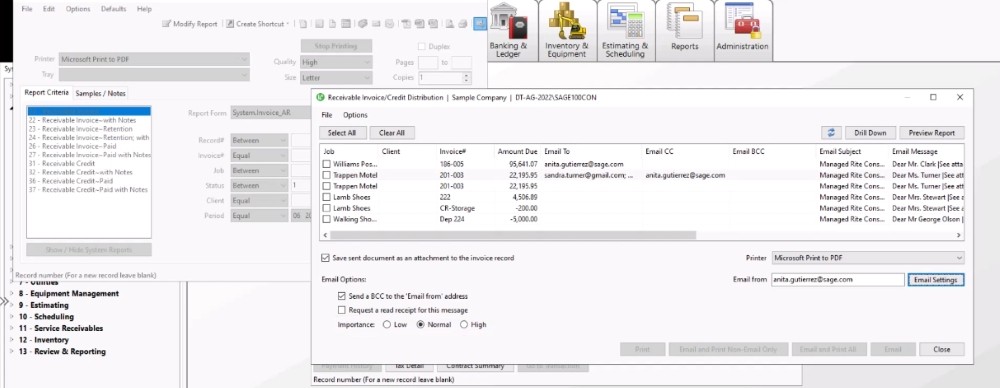
From there, you can:
- customize To, Cc, and Bcc recipients, subject lines, messages, and attachment names for each document or for all documents tied to the same job, vendor, or client
- insert dynamic fields, such as invoice numbers, into the email subject, message, and attachment name to personalize content automatically
- include attachments from the document’s source record, the job, or both
- attach a copy of the emailed or printed document to the source record
- preview documents before distribution
Another useful part of this feature is visibility after distribution. History is tied to the originating document and the associated job, client, or vendor, giving your team a clearer audit trail of what was sent, when it was sent, and how it was delivered.
Bulk documents distribution works with:
- 3-1-9 Overdue Receivable Reminders
- 3-2 Receivable Invoices/Credits
- 3-4 Statements (system reports only)
- 3-7 Progress Billing
- 3-10-3 Print T&M Invoices
- 4-3-2 Pay Vendors – print lien waivers
- 6-6-1 Purchase Orders
- 6-7-1 Subcontracts
- 6-7-2 Print Subcontracts
- 11-1-11 Overdue Service Reminders
- 11-2 Work Orders/Invoices/Credits
3 Custom report file manager
The new 13-9 Report File Manager gives you a simpler way to manage custom reports and forms in one place. You can use it to:
- rename custom reports and forms
- delete files you no longer need
- edit existing designs
- move files between Shared, Private, and Company folders
You can also open the Report File Manager from the Options menu in any printing window.

4 Updated ACH formats
Effective March 20, 2026, NACHA requires certain ACH payment batches to be identified differently. To support that change, Sage added new formatting options in the Vendor ACH Payment File Creator window.

For the Standard Entry Class (SEC) Code, you can use:
- PPD for Prearranged Payment and Deposit. Company Entry Description is available only when you select PPD.
- CCD for Corporate Credit or Debit. If you select CCD, Sage automatically uses INV PMT, and you cannot change it.
Payroll direct deposit does not require changes because it already complies with current NACHA rules.
💻 Watch how job statuses and document distribution work
Final Thoughts
Be sure to review the full release notes, including fixes and compatibility details for Windows versions and Sage Estimating versions. If you are a hosted client, please schedule your update with Cloud IT at ticket@cloudit.com.
If you have questions, especially about setting up custom job statuses — we’re happy to review your current process and help you think through how to use the feature in a way that supports cleaner workflows and better reporting visibility.
Feel free to reach out. We’re always happy to share what we’re seeing.



The right foundation for your next stage of growth
Our team of experts is here to help guide you every step of the way. Let’s start your ERP journey today!